
Short answer
Open the link’s Share Sheet, choose CleanSend, then share the cleaned link from the new Share Sheet. CleanSend removes common tracking parameters and supports custom rules. Review unfamiliar URLs so you keep parameters that control the page itself.
Keep the product ID and remove the campaign tags
In this example, id=42 chooses a product. The utm_source and utm_campaign values describe a marketing campaign, while gclid is a Google click identifier. Removing the whole query string would also remove the product ID.
These example.com addresses illustrate URL structure; they are not links to a real product or a recorded CleanSend test.
Before
https://example.com/product?id=42&utm_source=newsletter&utm_campaign=launch&gclid=exampleAfter removing the tracking parameters
https://example.com/product?id=42| Parameter | Purpose in this example | Action |
|---|---|---|
| id=42 | Selects the product | Keep |
| utm_source=newsletter | Describes the traffic source | Remove |
| utm_campaign=launch | Names the campaign | Remove |
| gclid=example | Identifies a Google ad click | Remove |
Clean a link through the Share Sheet
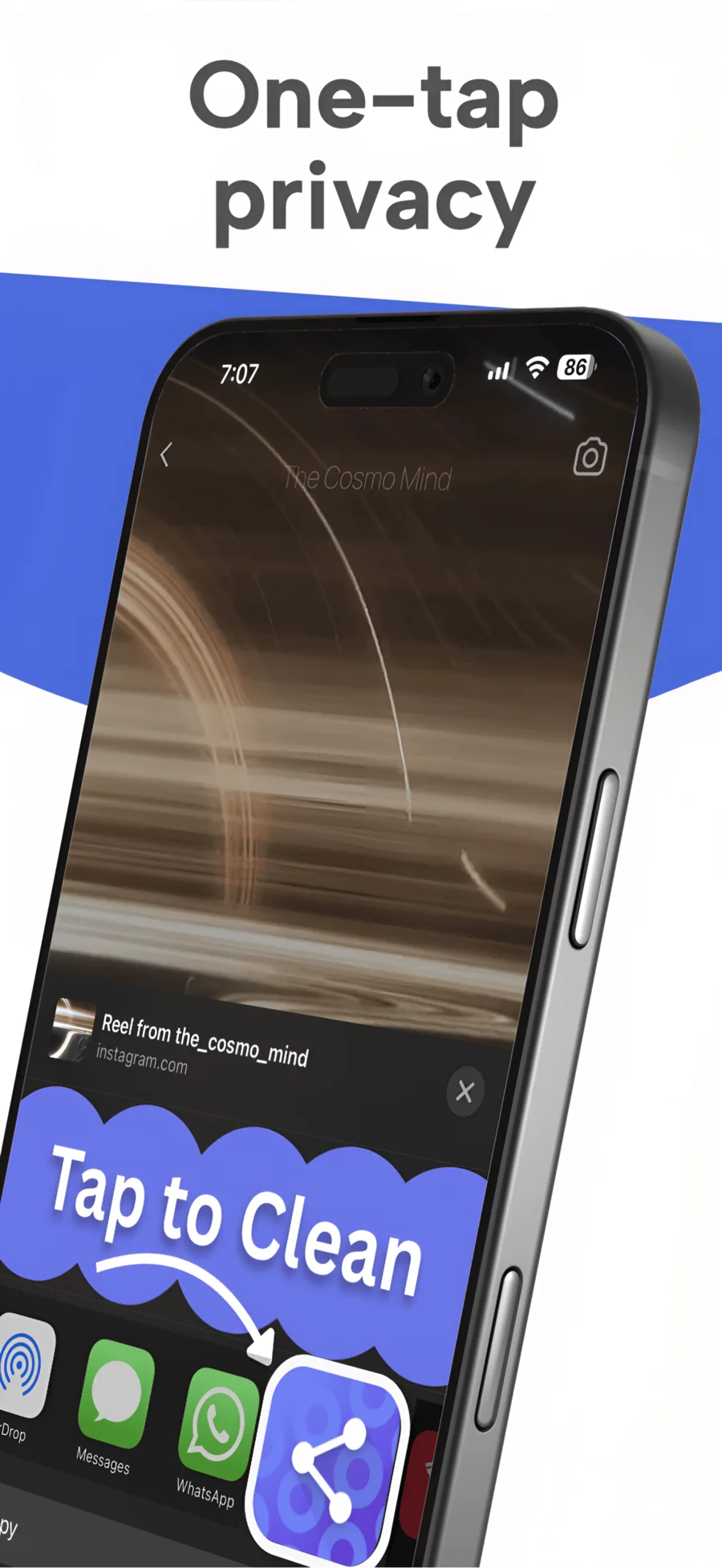
CleanSend works as an iPhone Share Sheet action. Its listed workflow opens a new Share Sheet with the cleaned link, so you can continue to the app or person you intended to send it to.
- Open the page or post you want to share and choose Share.
- Select CleanSend from the available actions.
- After cleaning, check the URL in the new Share Sheet.
- Choose your destination, such as Messages, Mail, or Notes.
Use the manual cleaner for a copied URL
If you already copied a link, paste it into CleanSend’s manual cleaner. Keep the original until you have checked that the cleaned address opens the intended page.
Custom rules let you name additional parameters to remove. Use a rule for a parameter whose purpose you know. A long or unfamiliar value might be an invitation token, a signed download, a referral, or a selected product variant.
- Keep search terms, filters, language choices, and product variants when they matter to the shared page.
- Take extra care with login, invitation, checkout, and temporary download links.
- If the cleaned link loses the intended content, return to the original and narrow the rule.
What this changes about privacy
URL cleaning removes selected information carried inside the address you share. The destination can still use cookies, account activity, or other measurement. CleanSend is a link cleaner rather than a browser, VPN, or anonymity service.
Google’s documentation explains UTM campaign parameters and GCLID. Those sources describe the parameters; CleanSend’s App Store listing describes which cleaning and sharing features the app provides.
Questions
Can I delete everything after the question mark?
That can break a link or change the page. Query parameters may select a product, search, invitation, or filter. Remove known tracking parameters and check the result.
Can CleanSend clean a link from the clipboard?
Yes. It includes a manual paste-and-clean workflow as well as its Share Sheet action.
Does a cleaned link prevent all tracking?
No. Removing URL parameters does not stop the destination from using cookies, account information, or other measurement.