

Short answer
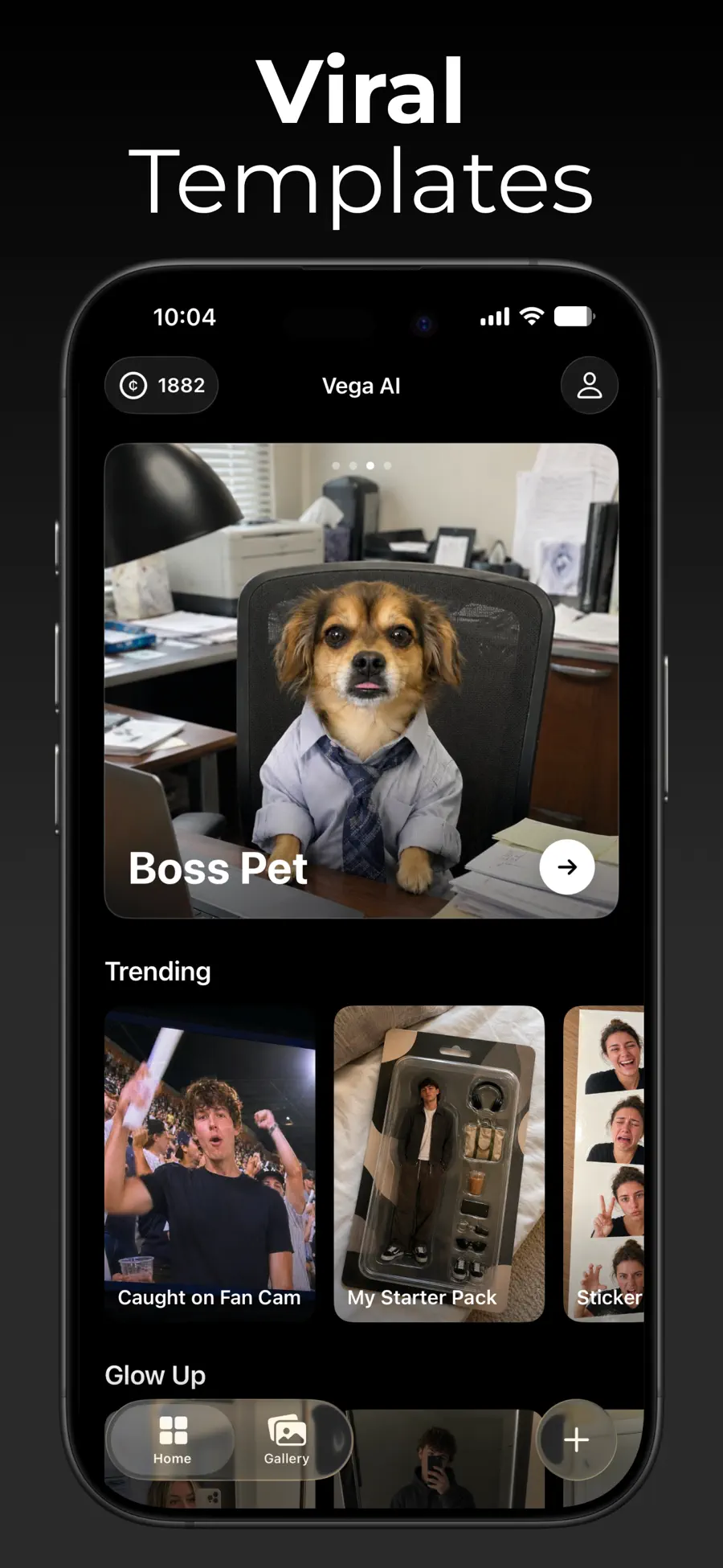
Choose a photo in Vega AI’s video workflow, describe the movement you want or select an available motion or dance template, and generate the clip. Preview the video in your gallery, then export or share the version you like.
Choose the kind of movement you want
Start with the output you have in mind. A subtle portrait animation calls for a different approach from a full-body dance. If an available template matches the effect, use it as your starting point. For a scene with specific movement, describe the action in a prompt.
| Your idea | Start with | Photo to choose |
|---|---|---|
| A portrait with gentle movement | A photo animation workflow and a focused prompt | A sharp, well-lit portrait |
| A character doing a dance | An available dance template | A clear photo suited to the template’s input instructions |
| A landscape brought to life | A photo-to-video prompt | A scene where the moving element is easy to see |
| A completely new scene | Text-to-video | A written description rather than a source photo |
Give the animation a clear subject
Choose a source image with enough detail to work with. For a person, look for a visible face, natural lighting, and a background that does not compete with the subject. For a wider scene, make sure the element you want to move is in the frame.
Follow the selected template’s photo instructions. If it calls for a particular crop or body view, choose a matching photo before generating. A new source photo is often more useful than a longer prompt trying to compensate for missing detail.
- Use a sharp original rather than a screenshot of a small thumbnail.
- Choose one main subject for your first clip.
- Keep the part you want animated visible in the frame.
- Pick an image you are happy to transform and share.
Describe the motion rather than rewriting the photo
A useful motion prompt says what should move and how the camera should behave. Start with one action. These sample prompts give you a structure to adapt to your own photo.
Use a dance template when you want its ready-made movement. For a custom animation, try the motion prompt first and change one part of the request between versions.
Portrait animation
A gentle smile and a slight turn toward the camera. Subtle natural movement, with a still camera and the same background.
A scene with motion
The leaves move softly in the breeze. Keep the plant and room composition similar. The camera stays still.
A cinematic landscape
Clouds drift slowly over the mountains as the camera moves gently forward. Keep the landscape recognizable.
Make the clip and save your favorite
Vega brings photo transformations, short videos, and templates into the same app. Generations use the access or credits shown for the selected workflow; check the displayed requirement before starting.
- Open the video or motion workflow you want to use.
- Select your source photo and follow any input instructions.
- Choose an available template or write your motion prompt.
- Review the available settings and generation requirement, then create the video.
- Play the result from the gallery and export or share your favorite version.
Watch the whole clip before posting
Play the video from beginning to end. Look for the moment where the movement works best, and check faces, hands, the edge of the subject, and background details. A still preview only shows one frame.
If the movement is too busy, ask for a smaller action or use a simpler photo. Keep the original image so you can try another effect without starting your photo search again.
Questions
Can I make an AI dance video from a photo?
Vega AI includes dance templates. Choose an available template and follow its source-photo instructions to generate a short clip.
Do I need to write a prompt?
Use a template when you want a ready-made effect. Write a prompt when you want to describe particular movement or create a new scene.
Can I save and share the video?
Yes. Vega’s gallery lets you preview, export, and share your creations.
Will every version look the same?
AI video results vary. Generate, play the full clip, and keep the version that fits your idea.