
Short answer
Choose a photo in Vega AI, describe the change you want or choose an available template, then generate the edit. Review the face, background, and small details before saving or sharing. Use a prompt for a specific change and a template for an existing style or effect.
Choose between a prompt and a template
A prompt is useful when you can describe a particular background, hairstyle, outfit, or portrait style. A template is useful when an available effect already resembles the result you want.
Vega’s photo and video workflows have different outputs. For a still portrait edit, choose the photo workflow rather than a dance or animation template.
| What you want | Where to start |
|---|---|
| A specific background or portrait change | A photo and a written prompt |
| An existing style or effect | An available photo template |
| Movement or a short animated clip | A video or motion template |
Describe one edit clearly
Name the change and the details you want to preserve. Avoid combining several unrelated transformations in the first request. The prompts below are examples to adapt; they are not tested outcomes or guarantees of what a model will produce.
Background edit
Replace the background with a softly lit café. Keep my face, hairstyle, and outfit recognizable. Use warm window light.
Portrait style
Give this portrait a soft editorial look with muted colors and natural skin texture. Keep the composition similar.
Try a hairstyle
Show a shoulder-length bob with soft bangs. Keep the face and original background recognizable.
Generate and compare the result
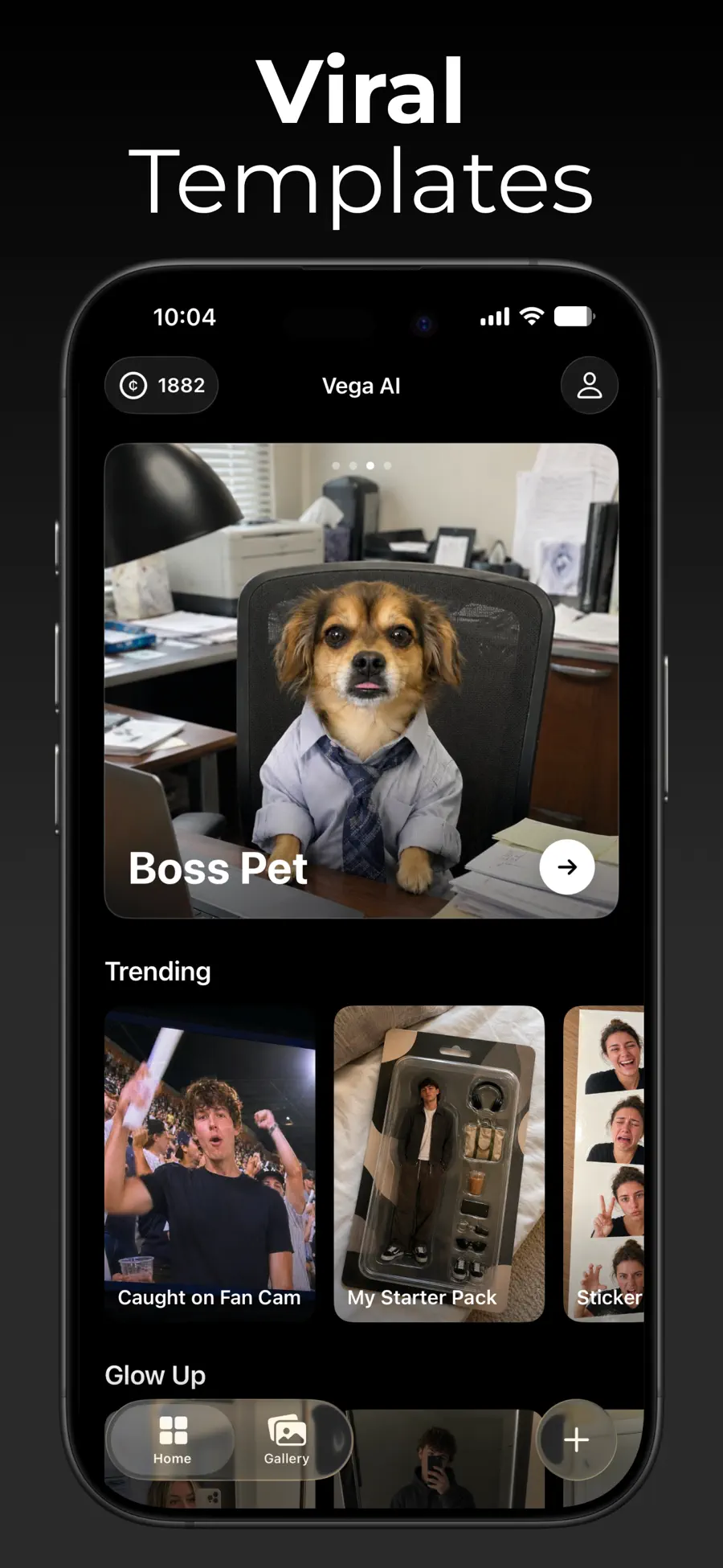
Vega AI supports photo transformations, templates, creative controls, and a gallery. The exact options available depend on the workflow and template you select.
- Choose the photo you want to edit.
- Write the prompt or select an available photo template.
- Choose the available output settings that fit your intended use.
- Generate the result, then compare it with the source photo.
- Use the gallery to preview, favorite, export, share, or delete the creation.
Review the details before sharing
Look at the face, hands, hair edges, background objects, and any text. AI edits can change details you meant to keep. If the result changes too much, narrow the request or try a different source image.
Keep the original photo so you can compare versions. A good preview at thumbnail size may still contain an unwanted change when you open it full screen.
Questions
Can Vega AI edit a photo I already have?
Yes. Vega supports photo transformations from an uploaded photo, using prompts or available templates.
Will the edited face stay exactly the same?
Results can change facial features or other details. Review the output against the original rather than assuming identity will be preserved exactly.
Can I make a video from the same photo?
Vega also supports short AI videos and motion templates. Choose the video workflow when you want an animated output.