Short answer
Create a reminder in Remindly. In Schedule, set Repeat Every to 15 and choose Minutes. Add the title and any image or sound you want, save the reminder, and keep it enabled. Allow notifications for Remindly in iPhone Settings.
Set the interval in New Reminder
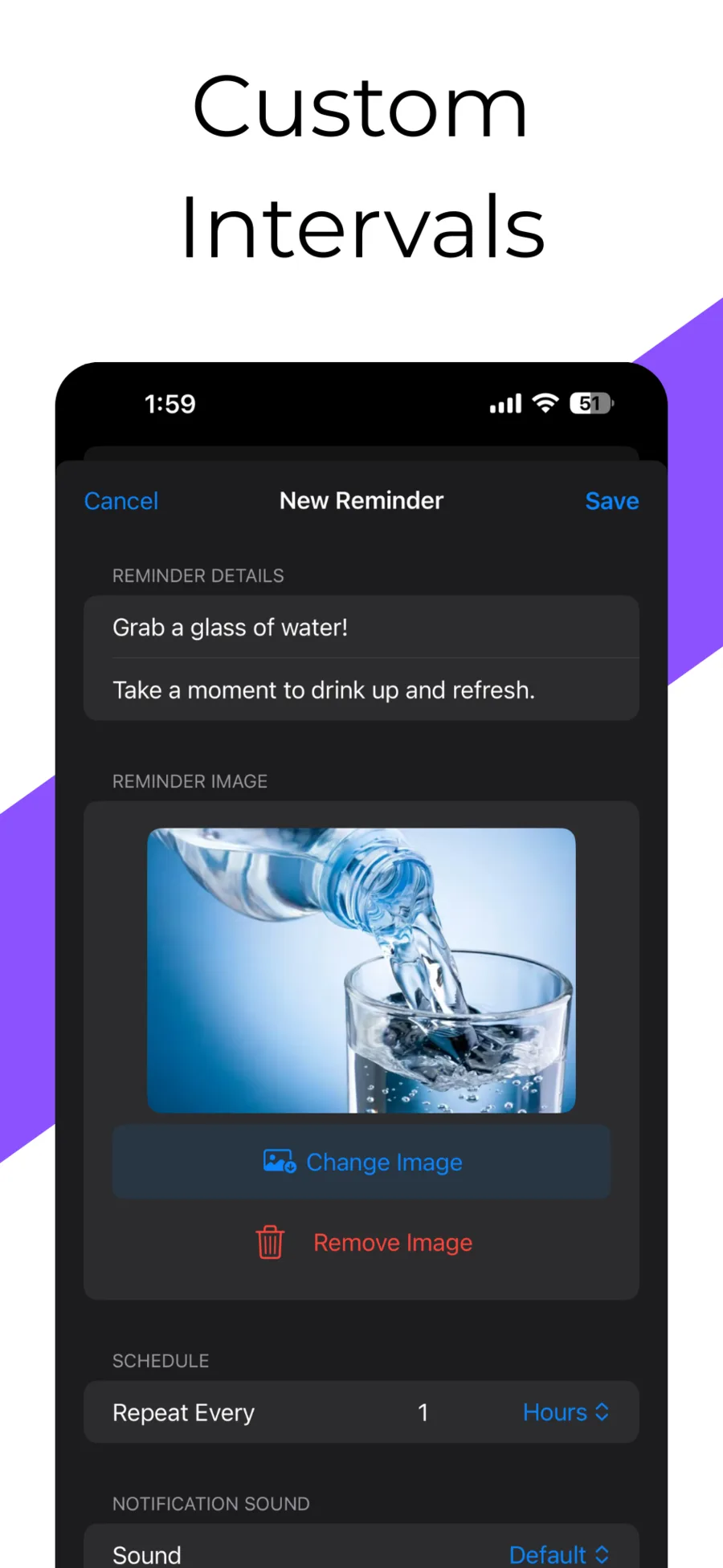
Remindly’s editor includes Reminder Details, a reminder image, Schedule, and Notification Sound. The Repeat Every controls choose both the number and the time unit.
- Create a reminder and write a short title in Reminder Details.
- Under Schedule, enter 15 next to Repeat Every.
- Change the unit to Minutes.
- Choose a sound and optionally add a photo or emoji cover.
- Tap Save and keep the reminder enabled in the list.
Make the notification tell you what to do
Use the title for the action. A note can add context, and a photo or emoji can help distinguish this routine from other notifications. These examples are personal prompts, not a recommended health schedule.
Start with one recurring prompt. If you dismiss it every time, change the interval or pause it. Use the reminder’s enable/disable control when the work session ends.
Example note for a work-session prompt
Pause what I’m doing, look across the room, and decide whether I need a longer break.
| Example routine | Title | Interval to try |
|---|---|---|
| Screen-work check-in | Look away from the screen | 15 minutes |
| Posture check-in | Relax shoulders and change position | 30 minutes |
| Project check-in | Check the export progress | 1 hour |
Check iPhone settings if alerts do not appear
Open Settings, then Notifications, then Remindly. Turn on Allow Notifications and choose the places where you want alerts to appear. Sound settings, Focus, notification summaries, and a paired Apple Watch can change how you receive an alert.
Apple explains that notifications normally go to either the iPhone or a paired Apple Watch rather than both. Check the device you are using before assuming that the reminder failed.
- Confirm the reminder is saved and enabled.
- Check Remindly’s notification permission.
- Review Focus and sound settings.
- Check a paired Apple Watch if you receive alerts there.
Use recurring prompts where timing can be flexible
Remindly supports minute-to-month intervals, custom sounds, photos, emoji covers, notes, and categories. It fits personal check-ins that need a repeating cadence.
Notification presentation is controlled by iOS. Keep appropriate separate safeguards for urgent or safety-critical reminders rather than relying on one app’s banner.
Questions
Can I repeat a reminder every 30 minutes instead?
Yes. Set Repeat Every to 30 and select Minutes. Use the same number-and-unit controls for other supported intervals.
Can I pause a reminder without deleting it?
Remindly includes an enable/disable control, so you can stop an inactive routine and retain its setup.
Will every notification make a sound?
The reminder’s sound choice and iPhone notification settings affect audible alerts. Silent settings and Focus can change how a notification is presented.