
Short answer
Start with fixed appointments, place two or three tasks around them, and leave gaps for travel and interruptions. In Domi, you can schedule tasks on a visual timeline, drag them to a new time, and use a focus timer when you start working.
Turn five tasks into a morning plan
Suppose your list includes replying to an email, writing a proposal, attending a call, buying groceries, and doing laundry. The call is at 10:30. Groceries and laundry can wait until later. Your morning does not need to contain every item.
The times below are an example, not an automatically generated Domi schedule. Estimate your own durations and include the parts that are easy to forget, such as getting ready for the call.
| Time | Plan | Reason |
|---|---|---|
| 9:00–9:15 | Reply to the email | A small task with a clear endpoint |
| 9:15–10:00 | Draft the proposal outline | One work block, rather than the whole proposal |
| 10:00–10:30 | Buffer and prepare for the call | Space for a late start or unfinished work |
| 10:30–11:00 | Attend the call | A fixed commitment |
| After the call | Review what fits next | Choose using the time that remains |
Build that plan in Domi
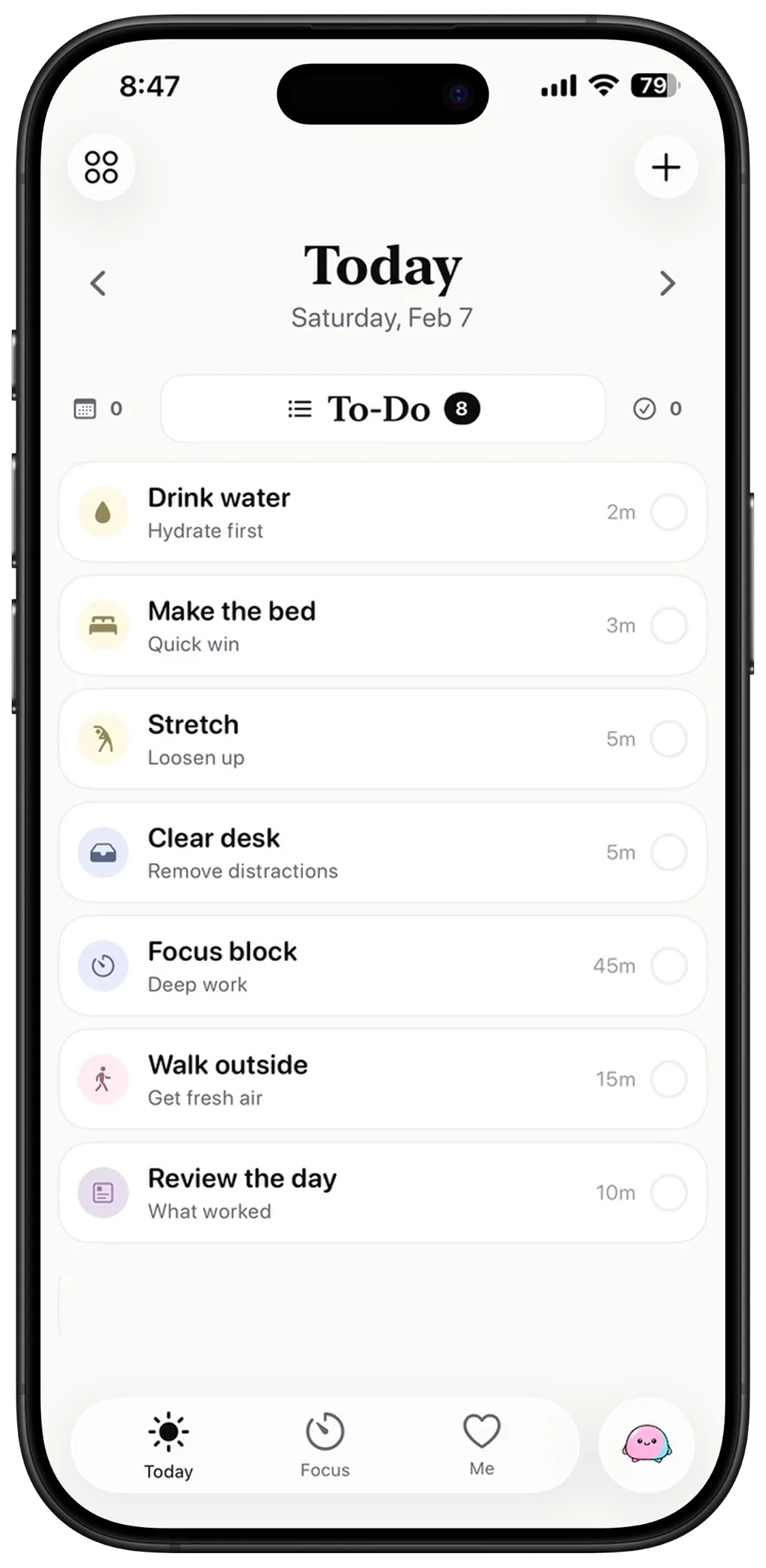
Domi combines a task list with a visual timeline. Use the list to collect work, then schedule the items you intend to do today. A task name should describe something you can start: “Draft three proposal headings” is easier to act on than “Work on business.”
- Add the tasks and your fixed appointment to the day’s plan.
- Schedule the appointment first, then place your chosen work around it.
- Leave a gap before anything you must join or travel to.
- When a task starts, use Domi’s focus timer for the work block you have chosen.
Adjust the plan when a task runs late
If the proposal takes another twenty minutes, keep the call where it is. Move the flexible task or shorten its scope. Domi supports drag-and-drop rescheduling, so you can update the plan without rebuilding the whole day.
In the example, the buffer absorbs some of the delay. If there is still too much work left, schedule “Finish the second section” after the call. Keep the remaining action specific enough that you can recognize where to resume.
- Protect appointments whose times cannot move.
- Move flexible work before filling the buffer completely.
- Split an unfinished task if only part of it fits.
- Leave lower-priority tasks for another day when necessary.
Choose a timeline when time is the missing information
A simple list can be enough for errands that fit anywhere. A timeline becomes useful when several tasks compete for the same morning, you have fixed commitments, or you want a visible start time.
Try planning one part of the day first. Afterward, compare the estimated durations with what happened and adjust the next plan. You can reuse Domi routines for recurring structure without scheduling every minute.
Questions
What is a visual daily planner?
It places tasks in a time-based view so you can see their order and where they fit around appointments. A task list collects work; the timeline adds a plan for when to do it.
Can I move tasks when my day changes?
Domi supports drag-and-drop timeline planning and rescheduling. Keep fixed commitments in place and move the flexible work around them.